

Keep It Clean!
Routine Maintenance on Your Computer
May 2017
Anti-malware programs
Always keep your firewall, anti-virus, and anti-spyware products up to date!
There are many good commercial products available, such as:
Norton
McAfee
Kaspersky
Vipre
There are several free options as well, including:
Avast!
AVG
Microsoft Security Essentials (Win 7) and Windows Defender (Win 8 – 10)
Make sure to run a full scan of your computer on a regular basis. Automatic scans usually can be set up.
Pick your scheduled scan time when you do not usually perform “computing-intensive’ tasks.
Set your security software to download and install updates automatically. Choose how often update checks should be made.
Firewall software also is a good idea, especially if you use your computer on the road a lot.
Firewall software prevents unwanted access to/from a network.
Beware of insecurity software – you’re browsing along, and suddenly you see something like this:
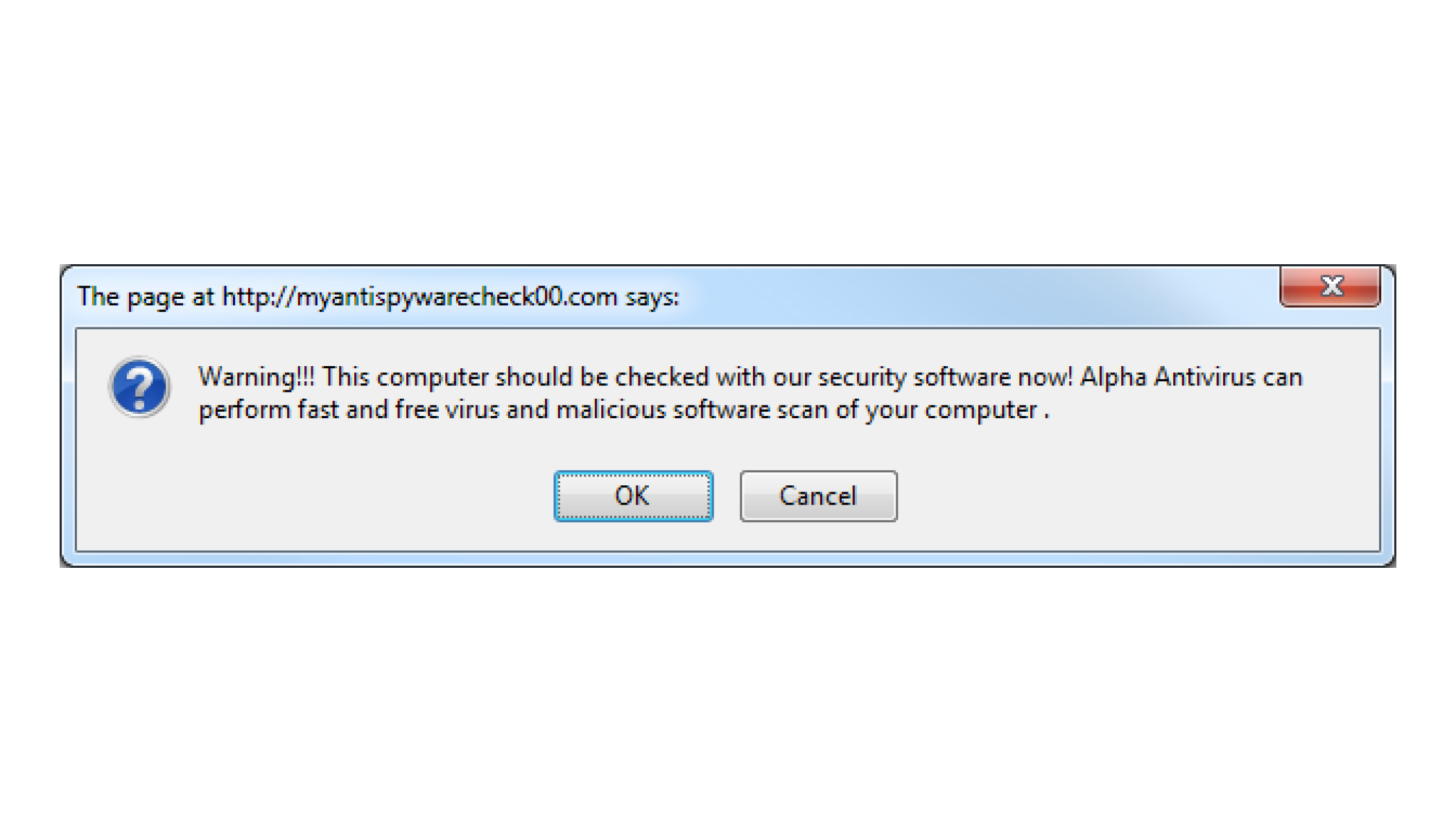
Clicking on buttons such as OK or Click here to fix the problems may load malware onto your computer; some of this malware may force purchase of the infiltrator’s product before it can be removed. (“Ransomware”)
Automatic updates
Set your computer to download and install operating system updates automatically.
This will assure that you have the latest security and performance fixes as soon as Microsoft or Apple releases them.
Disk space
When your internal disk reaches 70% - 75% full, you may see performance begin to drop.
One answer to this problem: Create more space!
Install a 2nd (or 3rd?) internal drive, and move your data files from your system drive to the new drive.
Installing a solid-state drive (SSD) will have the further advantage of speeding up your system.
An easier solution: clear the clutter!
Uninstall programs that you no longer use.
This is done from the control panel in Windows. (Never just delete the app’s folder.)
You can simply delete the app’s folder in MacOS, for the most part.
Copy data files to an external drive, and then delete them from your internal disk. (See Mayfield’s law #1.)
If you are using Outlook or some other non-Web email client, delete unneeded emails.
Disk Fragmentation
Over time, hard disks become fragmented, which means that files are broken up into small pieces that are stored across the disk rather than being stored as a single unit.
You can perform a defrag operation to get a little more speed.
Be sure to back up your system before defragmenting!
Defragmenting an external drive takes a lot of time.
DO NOT defrag a SSD! They work differently than a hard drive.
Disk Organization
Keep your files well-organized into folders and subfolders to make it easier to find what you want.
Name your files in such a way that it is apparent what the file is, and so that you can search folders or drives using the tools built into your Windows or MacOS.
The Desktop
Windows and Mac OS run faster with uncluttered desktops.
Have you ever spent too much time looking for a particular shortcut or file on a crowded desktop?
Suggestions:
Move documents to the Documents folder or another logical location.
Pin frequently used apps to the Start menu, Start page, or put them on the taskbar.
Use the Windows search box or MacOS Spotlight to find apps and other files.
Web browsers
There are a number of good browsers available:
Microsoft Edge
Mozilla Firefox
Google Chrome
Apple Safari
Opera
You may find that you can navigate better/faster using a different browser than you currently are using.
You can have multiple browsers installed on your computer simultaneously.
Occasionally clearing out certain data from browsers may also improve browser performance. For example, in Edge:
Select the three dots at the upper-right corner of the browser.
Click on Settings.
Under Clear Browsing Data, click on Choose what to clear.
Choose the items you wish to clear; cached data and files is a good choice.
Click on the Clear button.
Use a product such as Delicious or Pinboard to manage your bookmarks.
These products store your bookmarks in the cloud and permit you to access those bookmarks from any browser on any computer.
Startup programs
Sometimes when you install an app, it puts items into the Startup folder.
The apps that are located in that folder are executed automatically when Windows or MacOS starts.
Check the folder from time to time to see if there are any items you can safely remove. • When some apps are installed, they install other, “hidden” apps. These don’t appear in the Startup folder, but they also are run when Windows starts.
These apps tend to continue running once started, using up time and other resources on your computer.
Some of these programs are useful, but others are not, and they could even include spyware or other forms of malware.
There is a utility named msconfig that can be run to look at and remove such apps. DO NOT RUN MSCONFIG UNLESS YOU ARE SURE OF ITS USE!
Power issues
Always use a surge protector with your computer and related equipment.
If you are concerned about power losses, consider purchasing an uninterruptable power supply (UPS).
Purchase a UPS with enough capacity to power your computer &monitor for a few minutes.
A UPS is not needed when using a laptop, unless your battery is bad.
Change the power options (from the control panel) to put the monitor, hard disk, and computer into low-power modes during extended periods of inactivity.
Other suggestions
Don’t start too many applications at the same time.
Don’t just switch off your computer’s power (unless it’s really frozen). Shut it down instead.
Occasionally use a registry cleaning app.
There are both commercial and freeware versions available.
Here is a list of 38 free registry cleaners: http://pcsupport.about.com/od/toolsofthetrade/tp/free-registrycleaner-programs.htm
Always back up your system before using a registry cleaner! • Empty the recycle bin.
Some of Mayfield’s Laws
1. If your data is important, keep a current backup.
Corollaries:
Keep your current backup current.
If your data is really important, keep two current backups.
If you keep multiple backups, keep them in different locations.
Rotate between at least two sets of backup media.
2. It’s seldom a good idea to purchase leading-edge computer technology. Going back even one generation can save you big dollars.
Besides, in three to six months, the leading-edge technology for which you paid extra no longer will be leading edge.