

Photo Storage and Video Editing
Analog vs Digital
Clocks are a good way to understand the differences between analog and digital information.
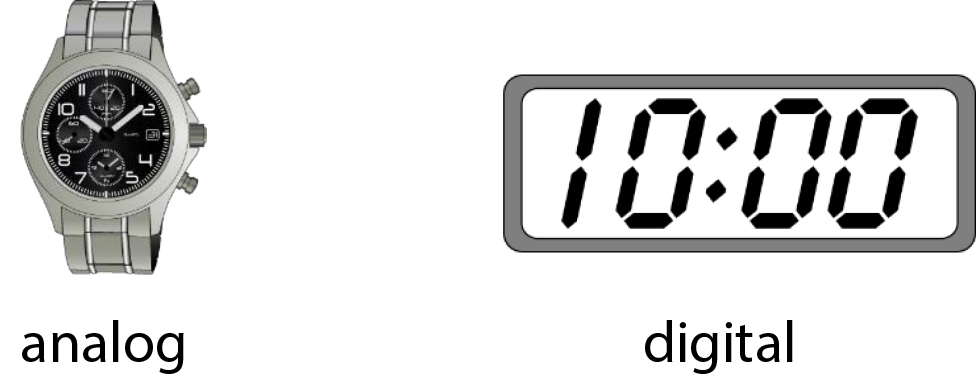
Data in modern devices is stored in digital form, as a collection of 1’s & 0’s.
Analog data degrades over “generations” of copies.
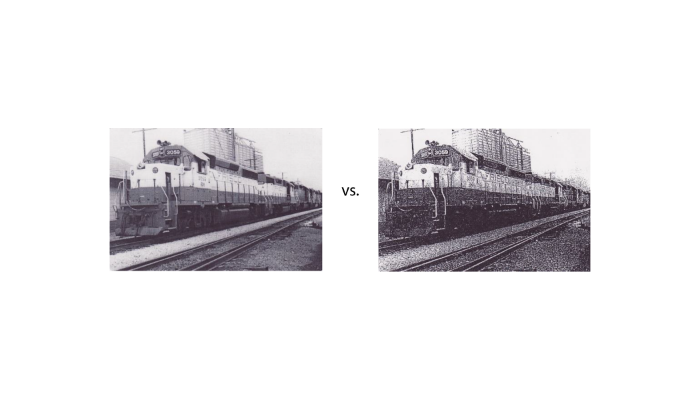
Digital data is less susceptible to degradation due to copies.
An exception to this is when the data is stored in a “lossy” compressed format.
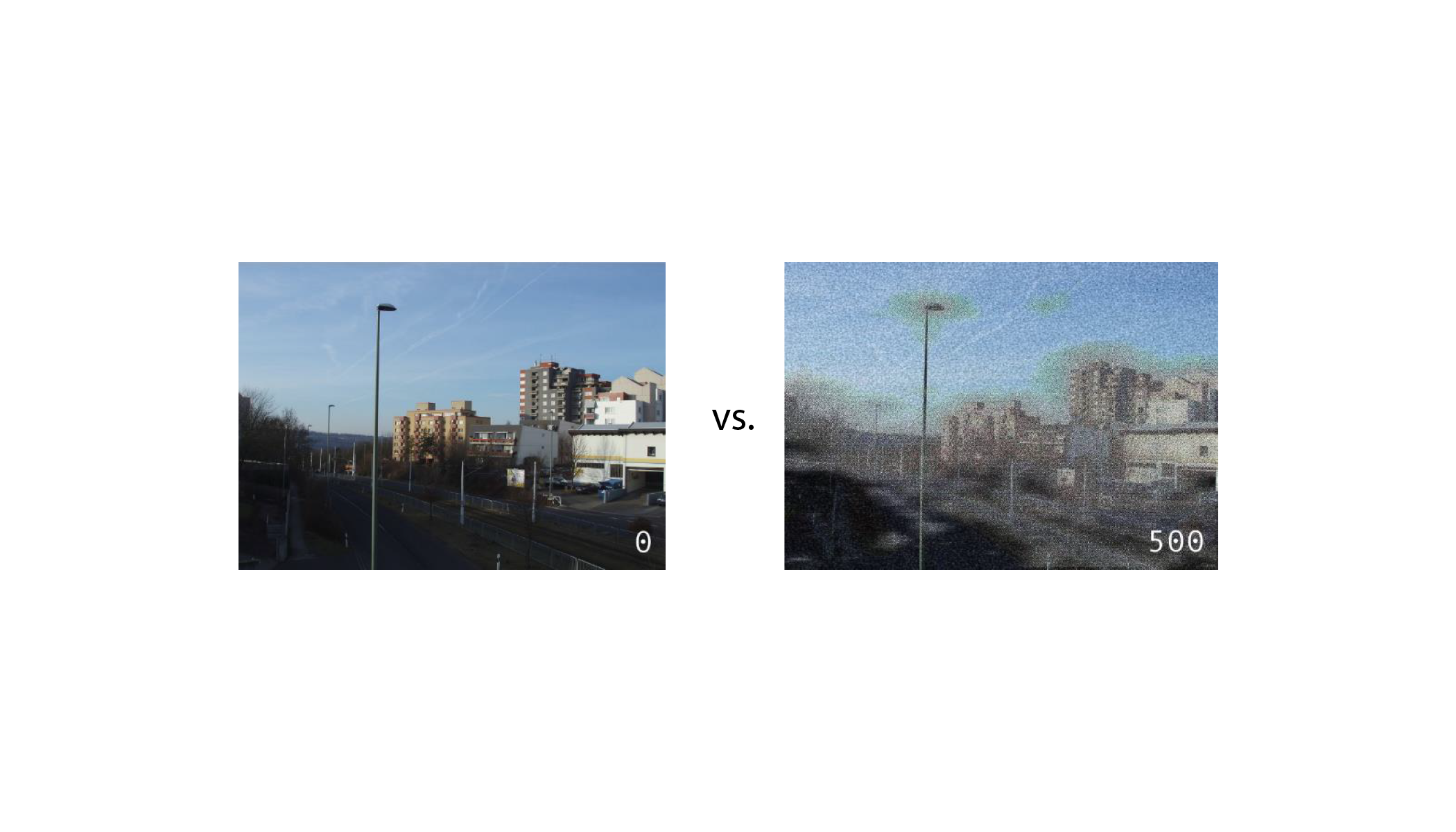
Lossy compression
Some common, lossy compression formats:
mpeg, mpeg2, mp3, mp4 – Audio and video
jpg and gif – Images
Most modern, digital cameras use jpg by default.
Rule of thumb: When editing jpeg photos, avoid multiple editing sessions on the same photo file.
Instead, go back to the original photo, if you can.\
Taking digital photos
This is not the topic of today’s session.
I suggest you visit the website Glade Presnal shared with us (http://www.jasonrichclasses.com) and view these two presentations:
“Take & Share Awesome Photos Using Your iPhone or iPad”
“Showcase and Share Your Vacation Photos”
Converting analog photos to digital
A flatbed scanner is the best way to digitize your photos.
Many “consumer-grade” scanners available today will be good enough for most needs. Most of these will scan at pixel densities of 300 – 2400 dpi (dots-per-inch)
For higher-resolution needs there also arephoto scanners,which have a much higher dpi capability. For example, the Epson Perfection V550 Photo Scanner ($170 on Amazon.com) is a highly-rated product that can scan at 6400 dpi
Rules of thumb for scanning:
The higher the dpi, the more space the storage the photo will take. (But storage is cheap and getting cheaper by the day.)
It is better to scan at a higher dpi and then scale the photo down to a smaller size for printing than to scan at a lower dpi and then scale the photo up.
When uploading photos for printing, your printing company may have suggestions on resolutions for particular print sizes.
Printing your photos
Rule of thumb: Upload your photos and have them printed on photo paper (for example, with Wal-Mart) rather than printing them on your home printer.
If you use plain paper on your home printer, the quality of the paper and image will be lower than a commercial print.
Whether you use plain paper or photo paper at home, the cost of paper + ink will be (significantly) higher than for a commercial print.
Check with your photo printing company to learn the suggested resolutions for particular sizes of prints.
For example, Wal-Mart suggests these minimum image resolutions:
4 x 6: 540 x 360 pixels
5 x 7: 546 x 390 pixels
8 x 10: 960 x 780 pixels
Multi-Scan
Multi-scan is the term used to describe scanning multiple photos at one time.
Many of today’s scanners come with this capability built into the included software.
Multiple photos (perhaps of differing sizes) can be scanned in one take.
One photo file will be created for each photo, cropped to its edges.
There are a number of commercial products can split photos out of a scanned image, if your scanner software cannot do so.
Gimp(free) also has a plug-in available for splitting photos from a scan.
Digitizing slides
Most photo scanners digitize not just photos, but also negatives and slides.
Digital photos can be created from negatives.
There are trays included with or available for photo scanners that align slides and allow you to scan several at a time.
For folks with hundreds or thousands of slides, there are scanners with manual or automatic slide feeders built in.
Many of these are dedicated devices, only usable for slides.
Google “35mm slide scanner”.
Rule of thumb: After scanning the slides, examine them to see if you need to rescan after cleaning the slide.
Storage needs for digital photos
Most cameras today store there images on removable, SD or micro-SD memory cards.
Older devices or some smartphones may not have removable memory.
Whether the device has removable memory or not, you almost certainly can connect the camera to your computer via USB or wireless.
Most cameras today store there images on removable, SD or micro-SD memory cards.
Older devices or some smartphones may not have removable memory.
Whether the device has removable memory or not, you almost certainly can connect the camera to your computer via USB or wireless.
Current capacities for Micro-SD card include:
8GB (about $6),
16GB (about $8)
32 GB (about $15)
64 GB (about $25)
28GB (about $50)
256GB (about $100)
Your camera may not work with the larger sizes; check your user’s manual for limitations.
A typical 10-megapixel (about 10,000,000 dots) photo stored in jpg format ranges from 10MB to 18MB in size.
So, about how many 10-megapixel photos will fit on a micro-SD card (worst case)?
8GB – 455
16GB – 910
32 GB – 1,820
64 GB – 3,640
128GB – 7,280
256GB – 14,560
Safely storing your photos
If you DropBox, you can install its app on your Apple, Android, or Windows phone or tablet, and then enable the Camera Upload feature.
This feature automatically uploads photos from your device to your DropBox account immediately after the photos are taken.
The photos are stored (by default) in a DropBox folder named Camera Uploads.
Use caution with the Camera Uploads feature!
If your device is connected to DropBox via your carrier’s cellular network, you may exceed your monthly data plan.
Thus, you may want to synch your photos manually, once you have access to a wireless network.
If you upload your photos to your computer, there are many options for safely storing them.
Keep them on your hard drive or SSD. (Not safe!)
Burn to CDR/DVDR/BDR.
Store on a flash (thumb) drive – 64GB for about $30.
Store on an external drive – 2TB Western Digital drive for about $90 – about 116,500 10-megapixel images.
Store them in the Cloud.
Whichever you choose, you should keep an “off-premises” copy.
Arguably, the safest storage solution for your digital photos is “the Cloud”.
A backup service, such as Carbonite or Mozy – monthly fees.
Free backup services, such as iCloud, Google Drive, Microsoft OneDrive, Flickr, Picasa, etc. – data mining may occur, plus they may share your information with 3rd party advertisers. Read the fine print if concerned.
Video editing – Why?
Perhaps you have a video camera or a smartphone capable of capturing video.
Today’s smartphones can take very good video.
Most are capable of capturing at 720p or 1080p.
More and more are capable of capturing 4K video (4 times the resolution of 1080p HD video).
Even if you are an expert cinematographer, you will need to edit your raw video if you want it to look its best.
What type of editing might you do on your video?
Add title and trailing text.
Create smooth transitions between scenes.
Rearrange or edit out scenes.
Add voiceovers, soundtracks, or sound effects.
Add pointers or text overlays for emphasis or clarification.
Video editing products
In addition to the expensive, commercial products, there are a number of video editors that you can use for free.
In general, there will be a tradeoff between complexity of use and availability of features.
Larger feature set → more complex to use
Easier to use → fewer features
The product that we will look at today is less complex, but still has a good selection of features.
It’s name is HitFilm 4 Express.
It is available for both Windows and MacOS computers.
We will use the free version today.
There is a professional version, which has more features.
You can download it from the site https://hitfilm.com/express
Video editing products
There are a number of other good video editing packages available for free.
You can learn more about them at the URL http://www.techradar.com/news/software/applications/the-best-freevideo-editor-1330136
VideoPad Video Editor
Demo time!